


Why Your PDF Is Not Searchable
Pageonaut · August 19, 2026
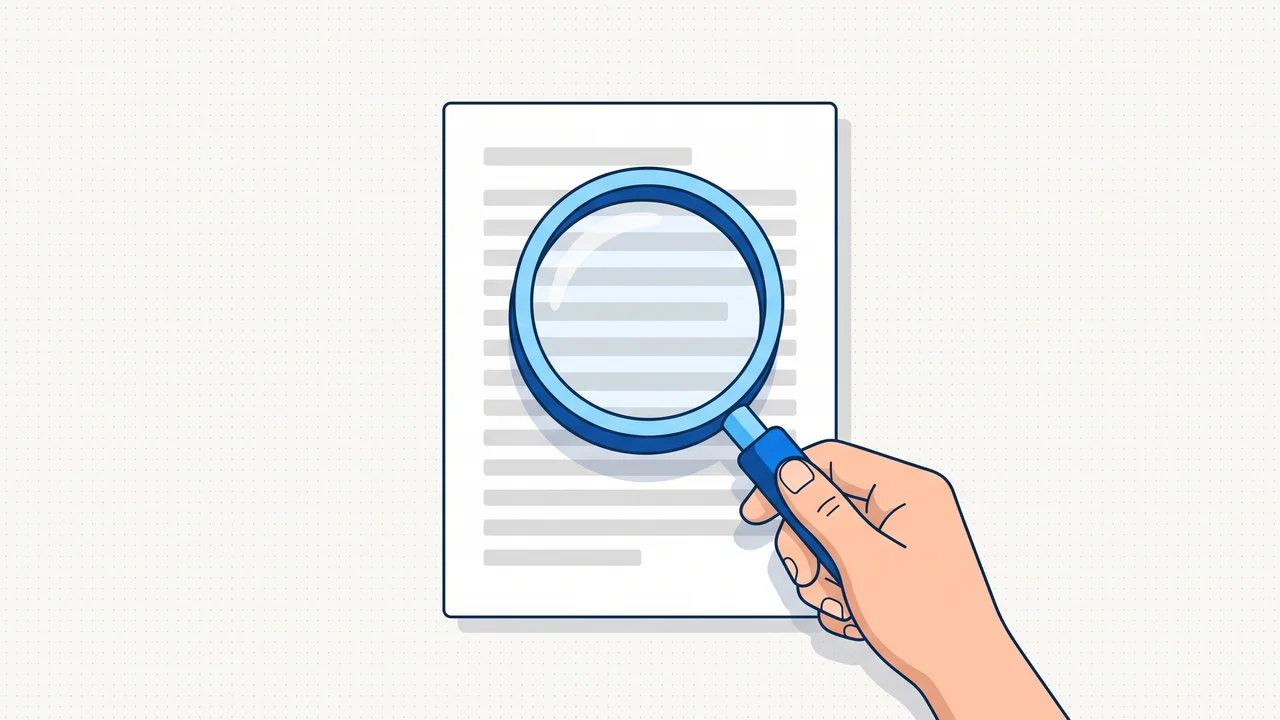
You press Ctrl+F, type a word you can see on the screen, and get nothing. The PDF looks like a document. To the computer it is a stack of photographs.
This is not a bug and it is not fixable by re-saving. It comes down to which of two very different things the file is.
Two kinds of PDF that look identical
Born-digital PDFs are exported from something — a word processor, a browser, an invoicing system. Inside, each page holds text objects: this string, this font, at these coordinates. Search works because there is something to search. So does copy-paste, and so do screen readers.
Scanned PDFs are wrappers. Each page is a single image, produced by a scanner or a phone camera, and the PDF exists only to hold the images in order and give them page numbers. There are no characters in the file at all — only pixels that happen to be arranged in the shape of characters.
Both open in the same viewer and print the same way. Nothing on the surface tells them apart.
The five-second test
Three ways, cheapest first:
- Try to select a word. Drag across a line of text. If you get a rectangular selection box over the whole area instead of a text highlight, it is an image.
- Search for a word you can see. No hit means no text layer.
- Extract the text. Run the file through extract text from PDF. A born-digital file gives you its content in a second; a scan gives you an empty result. That is also the fastest way to check a whole batch.
The third one is the honest test, because the first two can be fooled: some scans have been through OCR and do have a text layer, just a bad one.
What OCR does, and what it costs
Optical character recognition looks at the pixels and guesses which letters they represent. Modern engines are good — well above 99% on clean printed text at sufficient resolution — but "good" is not "correct", and the failures are the interesting part.
The classic confusions survive to this day: 0 and O, 1 and l and I,
rn read as m, 5 and S. On a paragraph of prose that hardly matters;
your eye repairs it while reading. On an account number, an invoice total or
a serial number, one substituted character makes the value wrong while
looking right. Nothing flags it. Nothing underlines it in red.
That leads to the rule worth remembering: OCR makes a scan findable, not trustworthy. Search it, index it, grep it — but read a number off the image, not off the text layer, whenever the number matters.
Two things decide the quality more than the software does:
- Resolution. Below roughly 200 dpi, small print falls apart. 300 dpi is the safe floor for anything with footnotes or stamps.
- Contrast and geometry. A grey, tilted phone photo with a shadow across the gutter defeats a good engine. Flat, evenly lit, straight — that is most of the work.
The habit that destroys a text layer
Here is the trap, and it is common enough to be worth its own section.
A PDF is too large to email. Someone runs it through a "compress PDF" routine that works by turning each page into a JPEG and rebuilding the file from those images. The result is smaller. It is also no longer searchable — a perfectly good text layer was thrown away to save megabytes, and no amount of re-saving brings it back.
The same thing happens by accident: exporting pages as images to edit one of them, then rebuilding the PDF. Whenever a page becomes a picture, its text is gone.
If you deliberately need pages as images — for a presentation slide, a forum post, a thumbnail — PDF to images does that cleanly, and you keep the original alongside. Convert a copy. Never the only version you have.
For a job application or a contract this is not a detail. A recruiter's system that cannot read your CV cannot match it to the role, and a document management system that cannot index a contract cannot find the clause when someone asks about it in two years.
What to do with a scan you need to search
- Check whether it already has a text layer, with the extraction test above.
- If not, and you can get at the paper again, rescan it properly: 300 dpi, flat, even light. Better input beats better OCR every time.
- Run OCR — and keep the image. With browser tools that is two steps: PDF to images to get the pages out, then image to text on each page. Two steps instead of one is the honest trade for not uploading the document anywhere.
- Give the file a name a human can search:
2026-lease-hamburg-signed.pdfbeatsScan_0043.pdfeven without a single character of OCR.
Step 4 is the one people skip and the one that pays off first. A good filename is a text layer you write yourself, and it works in every file manager on earth.
In short
- Born-digital PDFs contain text; scanned PDFs contain pictures of text.
- The reliable test is extracting the text, not searching it.
- OCR makes a scan findable, not reliable — read important numbers off the image.
- Resolution and lighting matter more than the OCR engine.
- Rebuilding a PDF from page images shrinks the file and deletes the text layer for good. Work on a copy.
Try the tool
Extract Text from PDF