


How to Split a PDF into Separate Pages
Pageonaut · June 27, 2026
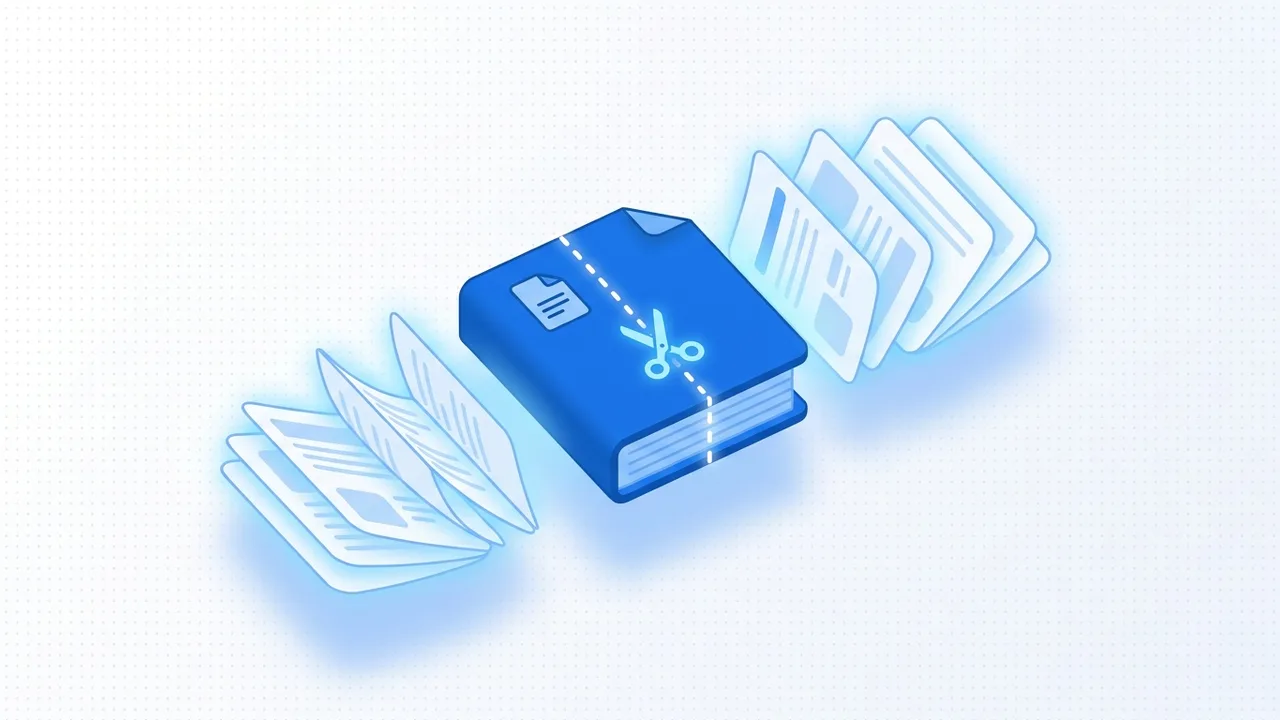
A PDF is a convenient way to bundle pages together, but sometimes you need the opposite: a single page pulled out, one chapter shared on its own, or a heavy document broken into smaller pieces. Splitting a PDF sounds technical, but it is really just deciding which pages belong together and saving them as their own files. This guide explains the common reasons to split a PDF, the difference between splitting by range and splitting every page, and how to do it without handing your documents to a server.
Why split a PDF in the first place
Most splitting tasks fall into one of a few familiar situations:
- Extract specific pages. You scanned a ten-page contract but only need to send the signature page, or a report contains one table a colleague asked for. Pulling out just those pages saves everyone from scrolling.
- Reduce file size. A bulky PDF can be hard to email or upload. Splitting it into smaller documents means each piece is lighter and easier to move around.
- Share one chapter or section. An ebook, manual or course handout often has parts that matter to different people. Splitting lets you send chapter three to one person without the other ninety pages tagging along.
In each case the goal is the same: keep what is relevant and end up with files that are easier to handle.
Splitting by page range vs every page
There are two main ways to split, and the right one depends on what you want out of it.
- By page range means you choose a span — say pages 5 to 12 — and save that block as a single new PDF. This is ideal for extracting a chapter, a section or a run of pages that belong together. You can usually repeat it to carve a document into a few meaningful parts.
- Every page means each page of the original becomes its own one-page file. This is useful when you need pages as individual units: separate invoices to file, scanned forms to sort, or single sheets to recombine in a different order later.
If you are not sure, start with ranges. Splitting into one file per page is powerful but can leave you with dozens of tiny documents to manage. Reach for it only when you genuinely need each page standing alone.
Keeping your originals intact
A good split never touches the source file. The tool reads your PDF, copies the pages you selected into new documents and leaves the original exactly as it was. That matters more than it sounds: if you pick the wrong range or realize you need a different section, you can simply split again from the untouched original rather than trying to undo a change.
A sensible habit is to keep the full PDF as your master copy and treat every split as a fresh export. Name the new files clearly — "contract-signature-page" beats "document(3)" — so you can tell what each piece contains at a glance.
Splitting vs merging
Splitting and merging are two halves of the same idea. Splitting breaks one PDF into smaller pieces; merging combines several PDFs into one. You often use them together: split a long document to pull out the three sections you care about, reorder or edit them, then combine the keepers back into a single clean file.
If you end up with separate pages or chapters that should travel as one document, the inverse operation is what you want — reach for Merge PDF to stitch them back together in the order you choose. Thinking of the two as a pair makes reorganizing a document far less daunting.
Splitting without uploading sensitive documents
Plenty of online PDF tools ask you to upload your file to their servers before they will do anything. For a throwaway document that may be fine, but contracts, medical records, tax forms and client files are exactly the kind of thing you don't want sitting on someone else's machine.
The better approach is to split the PDF right on your own device. Modern browsers can read a PDF and write out new files locally, with no upload involved. That keeps confidential pages where they belong — on your computer.
Our free Split PDF tool works this way. It runs entirely in your browser, so your file never leaves your device. There is no sign-up, nothing to install and no upload, which means it is safe for private and confidential PDFs. Pick a page range or split every page, preview your selection and download the results. You can find the rest of our document utilities on the more PDF tools page.
A simple workflow
- Open the original and decide which pages you actually need.
- Choose your method — a page range for a chapter, or every page for individual sheets.
- Split and download, keeping the source file untouched as your master copy.
- Rename the new files clearly so each one is easy to identify later.
Follow that loop and splitting a PDF becomes a quick, low-risk task.
FAQ
Will splitting a PDF change or damage the original file?
No. A proper split copies the pages you select into new documents and leaves the source file exactly as it was. If you choose the wrong pages, you can simply split again from the unchanged original.
Can I split a PDF without uploading it anywhere?
Yes. Pageonaut's Split PDF tool runs entirely in your browser, so the file is processed on your own device and never uploaded. That makes it safe for confidential documents like contracts and records.
What's the difference between splitting by range and splitting every page?
Splitting by range saves a chosen span of pages as one new file, which is best for extracting a chapter or section. Splitting every page turns each page into its own separate file, which is useful when you need pages as individual units.
Try the tool
Split PDF