


How to Merge PDF Files for Free Without Uploading
Pageonaut · June 19, 2026
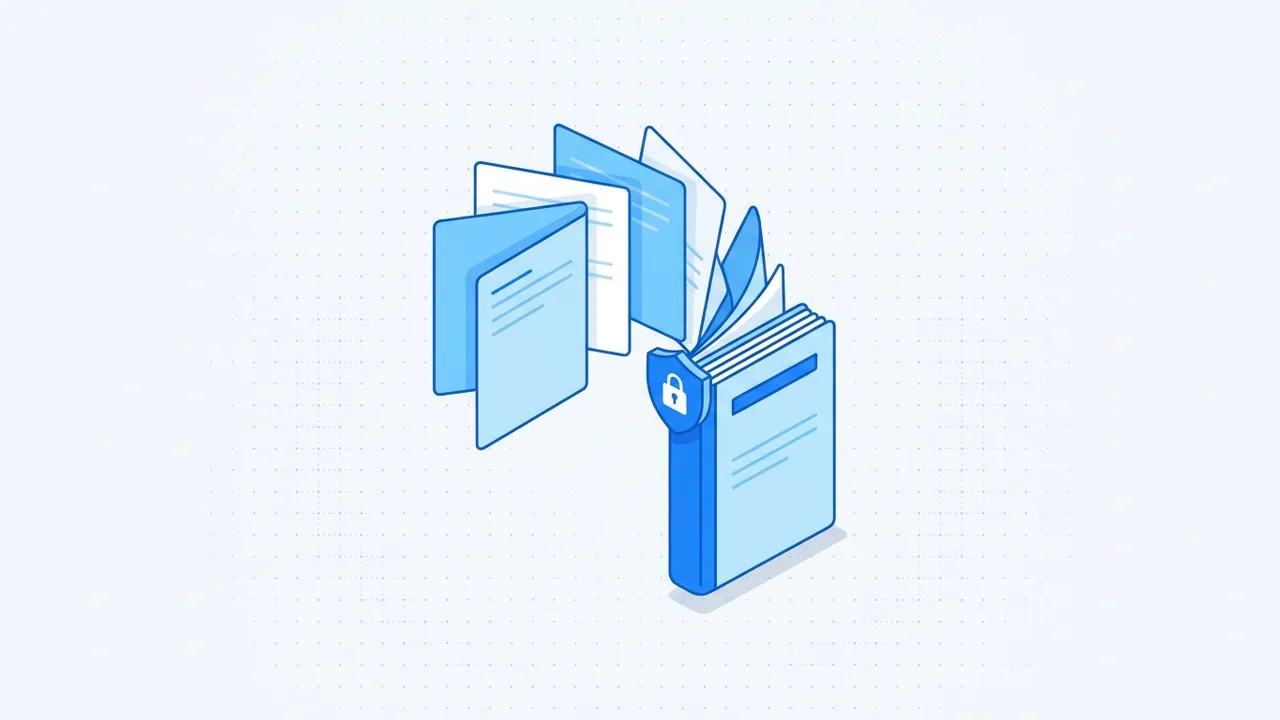
Combining several PDFs into one file is one of those small tasks that comes up constantly — stitching a contract together with its appendix, bundling scanned receipts, or assembling a single document from chapters. It sounds trivial, but two things trip people up: keeping the pages in the right order, and doing it without handing private documents to a stranger's server. This guide covers both.
What "merging" a PDF actually means
Merging takes two or more PDF files and joins them into a single PDF, one after another, preserving each page as it was. It does not re-type, re-render or re-compress your content; it simply concatenates the documents and writes a new combined file. The text stays selectable, the layout stays intact, and the original files are untouched.
That's different from editing a PDF (changing the content of a page) or converting one (turning it into Word or images). Merging is purely about assembly and order.
Why doing it locally matters for privacy
Many free PDF tools work by uploading your files to a remote server, processing them there and sending the result back. For a holiday flyer that's fine. For the documents people most often need to merge — contracts, invoices, ID scans, medical forms, bank statements — it's a real concern. Once a file leaves your device, you're trusting someone else's storage, retention policy and security.
A better approach is to merge entirely in your browser, on your own machine. Modern browsers are perfectly capable of reading and writing PDFs locally, so the files never need to be uploaded at all. The benefits:
- Privacy. Sensitive documents stay on your computer.
- Speed. No upload or download of the files themselves, so even large PDFs combine quickly.
- Works offline. Once the page has loaded, you don't need a connection to finish the job.
When you choose a tool, it's worth checking whether processing happens locally or on a server. If a site doesn't say, assume your files are being uploaded.
Step by step
The process is the same whether you're combining two files or twenty:
- Gather your PDFs. Put the files you want to combine somewhere easy to reach.
- Add them to the tool. Select or drag in all the PDFs at once.
- Set the order. This is the step people rush — see the next section. Arrange the files so they'll appear in the sequence you want in the final document.
- Merge. The tool concatenates the pages into a single new PDF.
- Download and check. Open the result and scroll through to confirm everything is present and in order before you delete the originals.
Getting the page order right
Order is where most mistakes happen, because tools often default to alphabetical or upload order rather than the order you have in mind.
- Name files to sort correctly if your tool orders alphabetically:
01-cover.pdf,02-body.pdf,03-appendix.pdf. Zero-padding (01, 02 … 10) keeps them sorted once you pass nine files. - Drag to reorder when the tool supports it, and read the sequence top to bottom before merging.
- Mind front and back matter. Cover pages go first; appendices, signatures and references usually go last.
Spending ten seconds confirming the order saves you from re-doing the whole merge.
Common pitfalls to avoid
- Mixed page sizes. Merging an A4 document with US Letter pages produces a file with both sizes. That's normal and usually fine, but if you need uniform pages, standardize the sources first.
- Mixed orientations. Combining portrait and landscape pages is allowed, but the result will switch orientation partway through — expected, just don't be surprised.
- Password-protected files. An encrypted PDF generally can't be merged until it's unlocked, because the tool can't read its pages.
- Forgetting to verify. Always scroll through the merged file. A missing or duplicated section is far easier to catch now than after you've sent it.
- Assuming merge means compress. Joining files adds their sizes together; the result can be large. If size matters, compress afterward.
Merge PDFs privately in your browser
You can combine documents without uploading a single byte. Use our free Merge PDF tool to add your files, drag them into the right order and download one combined PDF — all processed locally in your browser, so your documents never leave your device. It handles a few files or many, and there's nothing to install. Browse more document utilities on the tools page.
A quick checklist
- Collect the PDFs you need.
- Add them all and set the order deliberately.
- Merge and scroll through the result.
- Keep the originals until you've confirmed the combined file is correct.
Follow that and merging becomes a thirty-second job you can trust.
FAQ
Will merging change the quality of my PDFs?
No. Merging copies each page as-is into the new file, so text stays selectable and images keep their original resolution. Nothing is re-compressed or re-rendered, so quality is identical to the source documents.
Is it safe to merge confidential documents online?
It depends on how the tool works. If your files are uploaded to a server, you're trusting that server's security and retention. A tool that merges locally in your browser never uploads the files at all, which is much safer for sensitive documents like contracts or scans.
Can I reorder pages within a file while merging?
Merging itself joins whole files in the order you set. To rearrange individual pages, you'd reorder or split the source files first, then merge. The simplest path is to arrange your files so each one is already in the sequence you want.
Try the tool
Merge PDF