


How to Make a Free QR Code That Never Expires
Pageonaut · June 27, 2026
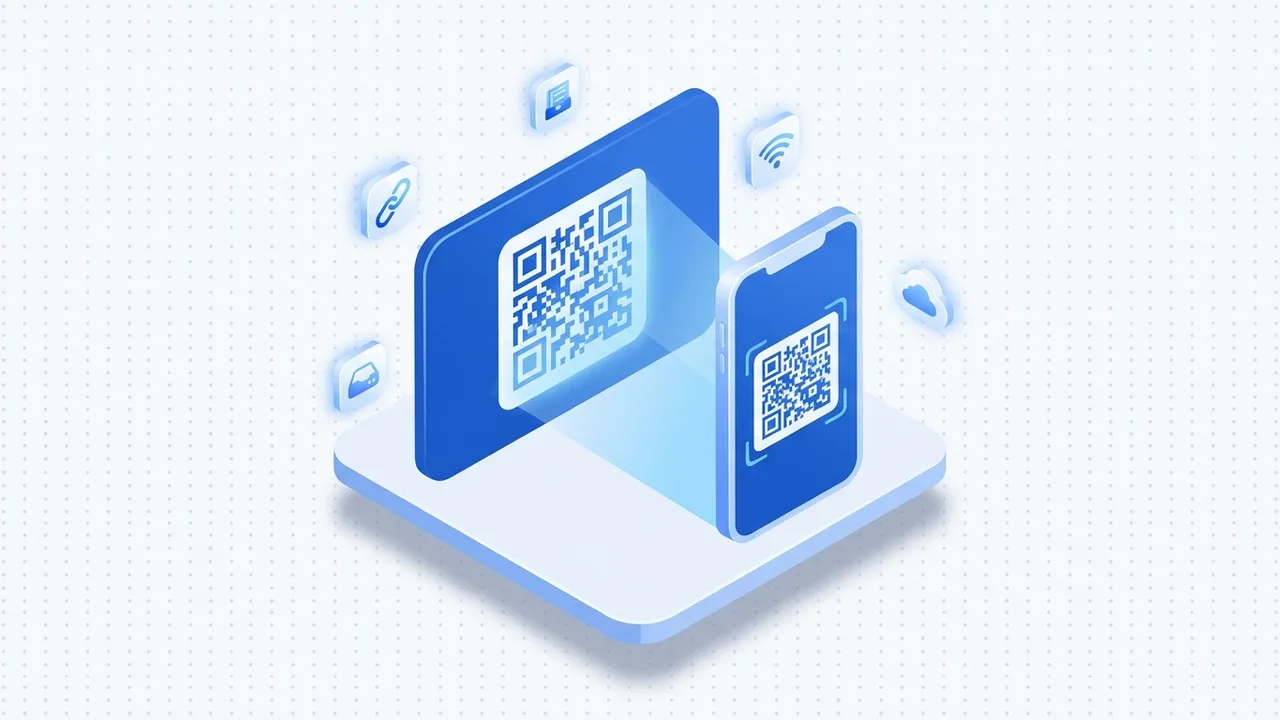
QR codes are everywhere — on menus, posters, packaging and business cards. They look simple, but there's a trap: many "free QR generators" hand you a code that stops working after a trial, or starts charging once you hit a scan limit. If you print that on a thousand flyers, you have a problem. This guide explains why some codes expire and how to make one that keeps working forever.
What a QR code actually is
A QR code (short for "Quick Response" code) is a two-dimensional barcode. Instead of the parallel lines of a traditional barcode, it stores data in a grid of black and white squares that a camera can read from any angle. Those squares encode text — a web address, network details, whatever you put in.
The key thing to understand is that the data lives inside the pattern itself. When the code holds a real URL, scanning it sends the phone straight there — nothing in the middle that can be switched off. That is the whole story behind why some codes last and others don't.
Static vs dynamic: why "free" codes expire
There are two kinds of QR code, and the difference decides whether yours survives.
- Static codes encode your actual content directly in the pattern. Put in
https://example.comand that exact address is baked into the squares — it cannot expire or be disabled, and there's no scan counter anywhere. - Dynamic codes encode a short redirect link owned by the generator — something like
qr.theirservice.com/abc123— which then forwards to your real destination. This is handy for editing the target later or tracking scans, but the redirect lives on someone else's server.
Here is the trap. Many "free" sites generate a dynamic code, then expire the redirect or cap the scans unless you subscribe. Your printed code points at their link, so when they pull the plug it's dead — even though the squares are perfectly intact.
A static code has no middleman to fail. The tradeoff is you can't change where it points after printing, so be sure of your URL first — but for a menu, a portfolio or a Wi-Fi card, that's exactly what you want.
What you can encode
QR codes can hold more than web links. Common types include:
- URL — the most popular use. Point people to a site, a form, a video or a download.
- Wi-Fi — encode a network name and password so guests can join by scanning instead of typing.
- Plain text — a message, a serial number, instructions or a short note.
- Contact (vCard) — name, phone and email that save straight into the phone's address book.
All of these can be stored statically, so none depends on an outside service. If your goal is inventory or retail labelling rather than a scannable link, a one-dimensional Barcode Generator is a better fit — barcodes are smaller and standard on point-of-sale systems.
Design tips that keep it scannable
A QR code is only useful if a camera can read it. A few rules separate a smooth scan from a frustrated one.
- Keep the quiet zone. That blank margin around the code is not wasted space — scanners need it to find the edges. Leave a clear border of at least four squares' width on every side.
- Use strong contrast. Dark squares on a light background read best. Avoid low-contrast pairs, and never place the code over a busy photo.
- Mind error correction. QR codes include redundancy so they still scan when slightly damaged. Higher error correction tolerates a small logo or scuffs, but makes the pattern denser.
- Size it for the distance. A rough rule is a 10:1 ratio of distance to size — read from a metre away, aim for about ten centimetres across. Export at high resolution so print edges stay crisp.
Generate a static QR code locally and privately
You don't need an account or a server to make a lasting QR code — modern browsers can draw the entire pattern on your own device.
Use our free QR Code Generator to create a static QR code right in your browser. Because it's generated locally, your link, Wi-Fi password or contact details are never uploaded anywhere — and because it's static, the result never expires and has no scan limits. There's no sign-up and nothing to pay: type your content, download a clean image and print with confidence. You'll find more on the more generators page.
Test before you print
The most expensive QR mistake is printing before testing — once it's on a thousand business cards, a typo in the URL is permanent. So make testing a habit:
- Scan the finished code with two phones — ideally one iPhone and one Android — using the built-in camera.
- Confirm it lands on the exact destination you intended, not a near-miss URL.
- Test at the real size, distance and material, since glare and curved surfaces can defeat a scan that looked fine on screen.
If it scans cleanly every time across devices, you're safe to print.
FAQ
Do free QR codes expire?
A static QR code never expires — the data is encoded directly in the pattern, so there's nothing to switch off. Codes that expire are dynamic: they route through a redirect on the generator's server, which can be disabled or rate-limited. Pageonaut creates static codes, so yours keeps working indefinitely.
Can I change where a QR code points after printing?
Not for a static code — the destination is baked into the squares. Editing the target later requires a dynamic code, which adds a redirect and the risk of expiry. For most uses it's safer to confirm your URL first and print a static code.
Is it safe to put a Wi-Fi password in a QR code?
Yes, when the code is generated locally — because Pageonaut builds it in your browser, the password is never uploaded anywhere. Just remember it's readable by anyone who scans the printed code, so display it only where you'd be comfortable sharing the network.
Try the tool
QR Code Generator