


How to Compress Images Without Losing Quality
Pageonaut · June 21, 2026
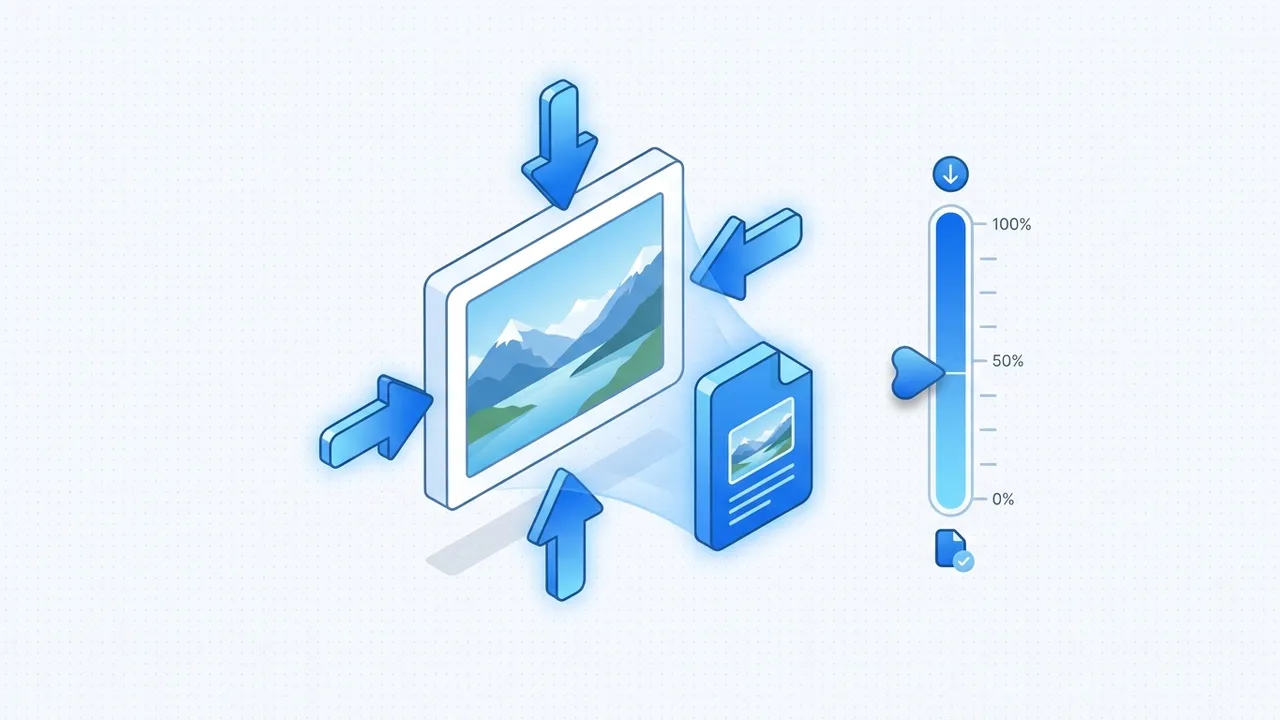
Big image files slow down web pages, fill up storage and make uploads painful. The good news is that most images carry far more data than your eyes actually need. With the right approach you can cut file size dramatically while keeping the result looking sharp. This guide explains what makes images heavy, how the common formats differ and how to compress them sensibly.
What actually affects file size
Three things drive how large an image is:
- Dimensions (pixels). A photo that is 4000 × 3000 has twelve million pixels to store. The same image at 1600 × 1200 has under two million. Resizing is often the single biggest saving.
- Format. JPEG, PNG and WebP store data in very different ways, so the same picture can be several times larger in one format than another.
- Quality / compression level. Lossy formats let you trade a little visual detail for a much smaller file. Pushing this setting too far is what causes the blocky "over-compressed" look.
If a file is too big, you almost always have one of these three levers to pull — usually more than one.
Lossy vs lossless compression
There are two broad approaches, and knowing the difference helps you choose a format:
- Lossless compression rebuilds the image exactly, pixel for pixel. Nothing is discarded; the file is just packed more efficiently. PNG works this way.
- Lossy compression throws away information the human eye is unlikely to miss — subtle color shifts, fine gradients — to reach a much smaller size. JPEG works this way.
Lossy is not "bad." At sensible settings the loss is invisible, and the savings are large. The skill is finding the point where size drops sharply but quality still holds.
JPEG vs PNG vs WebP
Picking the right format matters as much as any quality slider.
- JPEG is built for photographs and any image with smooth, complex color. It compresses these brilliantly. It does not support transparency, and it handles sharp edges (like text or logos) poorly, producing fuzzy "artifacts."
- PNG is lossless and supports transparency. It is the right choice for screenshots, logos, icons and anything with flat colors or crisp edges. For photographs, though, PNG files are usually much larger than JPEG with no visible benefit.
- WebP is a modern format that often beats both. It offers lossy and lossless modes, supports transparency and typically produces noticeably smaller files than JPEG or PNG at similar quality. Most modern browsers support it.
A quick rule of thumb: photos → JPEG or WebP; graphics with text, flat color or transparency → PNG or WebP.
How to choose a quality setting
For lossy formats, quality is usually expressed as a number, often from 0 to 100. Higher means better-looking and larger; lower means smaller and rougher.
- 80–90 is a sweet spot for most photos. The difference from the original is hard to see, and the file is much smaller.
- 60–75 still looks fine for thumbnails, social posts and content where absolute fidelity isn't critical.
- Below 50 is where visible artifacts usually creep in — soft blocks around edges and banding in skies.
Don't guess blindly. Compress, look at the result at full size, and adjust. Pay special attention to flat areas (skies, gradients) and sharp edges, where compression problems show first.
When to resize instead of (or before) compressing
Resizing is the most overlooked saving. If an image will only ever display at 1200 pixels wide, there is no reason to store it at 4000. Match the dimensions to how the image is actually used:
- Decide the largest size it needs to appear at.
- Resize to roughly that, allowing a little extra for high-density screens.
- Then apply quality compression.
Doing both, in that order, often shrinks a file by 80–90% with no visible difference, because you removed pixels you were never going to see.
Compress images locally and privately
You don't need to upload your photos to a server to make them smaller. Modern browsers can resize and re-encode images right on your device. That means faster results and, more importantly, your files never leave your computer.
Use our free Image Compressor to shrink JPEG, PNG and WebP images directly in your browser — adjust quality, preview the result and download the smaller file. Nothing is uploaded, so it works on private screenshots and client photos with no privacy worries. You can find more image utilities on the tools page.
A simple workflow
- Pick the right format for the content (photo vs graphic).
- Resize to the dimensions you actually need.
- Set quality around 80 and preview.
- Compare to the original at full size, then nudge quality down until you see a problem and back off one step.
Follow that loop and you'll consistently get small files that still look clean.
FAQ
Does compressing an image reduce quality every time?
Not noticeably, if done well. Lossless formats like PNG lose nothing at all. Lossy formats like JPEG and WebP discard detail, but at quality settings around 80 the change is usually invisible while the size savings are large. Quality only suffers when you push the setting very low.
Should I use JPEG or WebP?
If you can, WebP — it generally produces smaller files than JPEG at the same visual quality and also supports transparency. JPEG remains a safe, universally supported fallback for photographs, which is why many people still reach for it.
Why does compressing the same image again barely help?
A JPEG that has already been compressed has had its redundant detail removed. Re-compressing it can only discard more real detail, hurting quality without saving much space. Always compress from the highest-quality original you have.
Try the tool
Image Compressor